Put Recipro on Your Home Screen (It's Not an App Store Download)
Even a big-picture money tracker needs to be one tap away. Here's how to install Recipro on your home screen in two taps — no app store required.
Recipro isn't the kind of app you're meant to open ten times a day. It's a big-picture tracker — you check in now and then to see how your net worth is doing, update a balance when something changes, or glance at your runway before a decision. But even an occasional habit dies behind friction: if checking in means opening a browser and typing a URL, "I'll look later" quietly becomes never.
An icon on your home screen removes that hurdle. Tap, glance, done. Here's how to put Recipro there — and no, you don't need the App Store or Play Store.
Recipro is a PWA, not a store download
Recipro is a progressive web app. That's a website that can install to your home screen and then behave like a native app: full-screen, its own icon, no browser address bar. Because it isn't a store download, that also means:
- No store account, no approvals, no waiting. You install it straight from the browser.
- Always up to date. There's no app to update — you always get the latest version the moment you open it.
- Tiny footprint. It's a web app, so it doesn't eat gigabytes of storage.
Install on iPhone or iPad (Safari)
On iOS the install lives in Safari's Share menu:
- Open Recipro in Safari (this doesn't work from other iOS browsers).
- Tap the Share button in the toolbar (the square with an arrow pointing up).
- Scroll down and tap Add to Home Screen.
- Confirm the name and tap Add. Recipro's icon appears on your home screen.
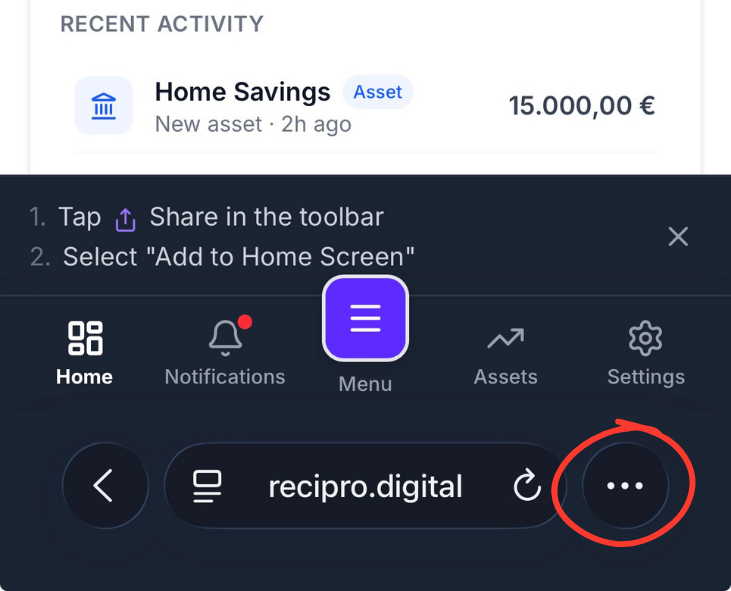
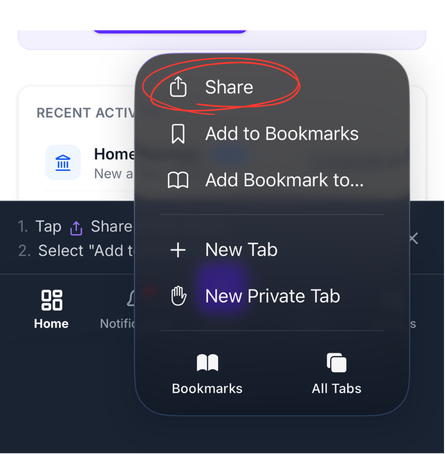
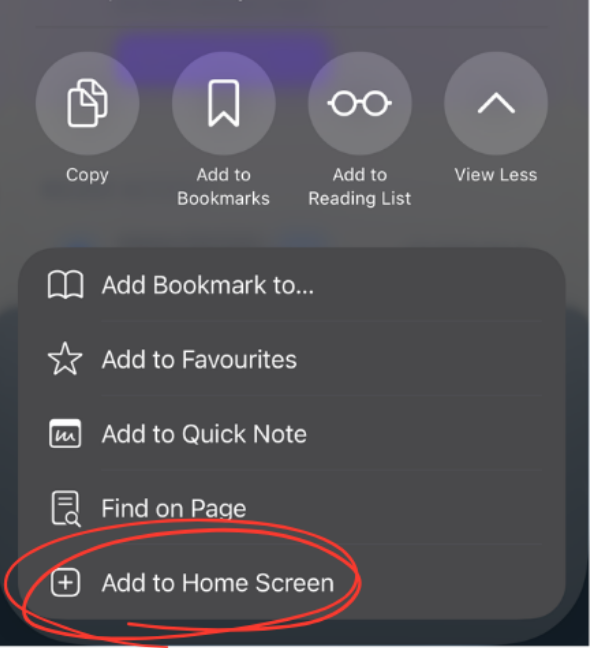
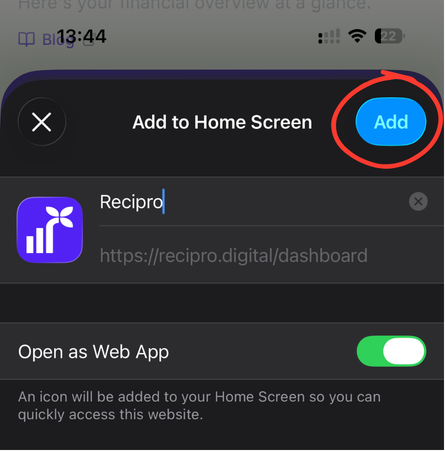
Example: on iPhone, the install lives under Safari's Share button → Add to Home Screen.
Install on Android (Chrome)
On Android, Chrome usually offers to do it for you:
- Open Recipro in Chrome.
- Watch for the Install app prompt — Recipro nudges it along, so you'll often see a small banner shortly after the page loads.
- If you'd rather do it manually, open Chrome's ⋮ menu and tap Install app (sometimes shown as Add to Home screen).
- Confirm, and the icon lands on your home screen and app drawer.
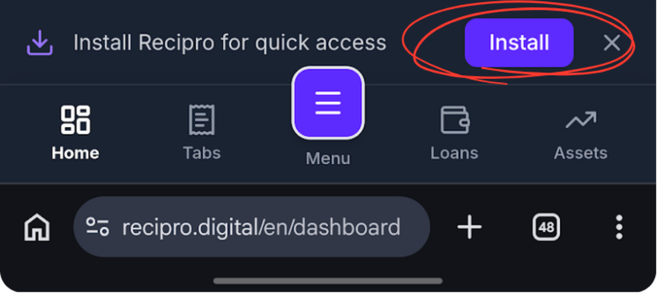
Example: on Android, Chrome surfaces an "Install app" prompt you can accept.
What you get once it's installed
Opening Recipro from the home-screen icon isn't just a shortcut — it runs in its own full-screen window, so it feels like a real app rather than a tab.
One small, deliberate touch: when you open the blog from inside the installed app, it opens in your normal browser rather than taking over the app window. That keeps the app focused on your money and lets you read (and share) articles the way you'd expect links to behave.
Example: once installed, Recipro sits on your home screen like any other app.
Why two taps matter
This isn't about turning money into a daily chore — Recipro is deliberately a big-picture tool, not an expense diary. It's about making the occasional check-in effortless: seeing how your net worth moved this month, updating a balance after something changes, or checking your runway before a decision. Those moments are rare enough that a little friction is all it takes to skip them entirely.
Put Recipro one tap away and "I'll check later" turns into a five-second glance. That's the entire point.
Add Recipro to your home screen and keeping an eye on the big picture stops being something you have to remember to go do — it becomes a five-second glance whenever you think of it. Open Recipro in your phone's browser and install it now; it takes about ten seconds and there's nothing to download from a store.